
Set it up
Real session, real Mac, captured 2026-06-09. Screenshots include the moments where Gatekeeper rejected the package, the menu-bar icon hid behind the notch, and the VM was unreachable because the laptop wasn’t on VPN.
Before you start
- Get the required IAM profiles. Through the NBG IAM portal, request:
- DEVOPS NBGIDP - Claude Code Sandbox — grants access to the portal and your VM.
- GCP AI <your-division> Team — grants your division’s GCP project access for Claude (Vertex AI). Replace <your-division> with your actual division name (e.g. GCP AI IDP Team).
- Confirm you can reach NBG’s network. Either you’re on-site, or you have NBG VPN. The portal works without it, but the VM doesn’t. If you skip this, the install will half-succeed and you’ll get a confusing SSH timeout.
- Log in to the portal once. https://claude-code-sandbox.azurewebsites.net/ — Entra ID sign-in. You should land on a Dashboard with your name top-right.
If either fails, see Troubleshooting.
1. Download
From the portal’s Dashboard, click Download for macOS. You’ll get sandbox-connect-1.0.7-universal.pkg (~18 MB, universal for Intel + Apple Silicon, unsigned for now).
2. Bypass Gatekeeper
Double-click the .pkg. macOS will refuse — the package is unsigned:
 Don’t click “Move to Trash” — click “Done”.
Quickest route: open Terminal and run:
sudo xattr -rd com.apple.quarantine ~/Downloads/sandbox-connect-*.pkgopen ~/Downloads/sandbox-connect-*.pkgOr via System Settings: Open Privacy & Security, scroll down, click “Open Anyway” next to the blocked-package message. Re-double-click the .pkg.
Either way, the Installer wizard runs, accepts your password, installs /Applications/Sandbox Connect.app.
3. Find the menu-bar icon
Launch /Applications/Sandbox Connect.app. No window appears in the Dock — it’s a menu-bar app. Look top-right for a navy “SC” tile.
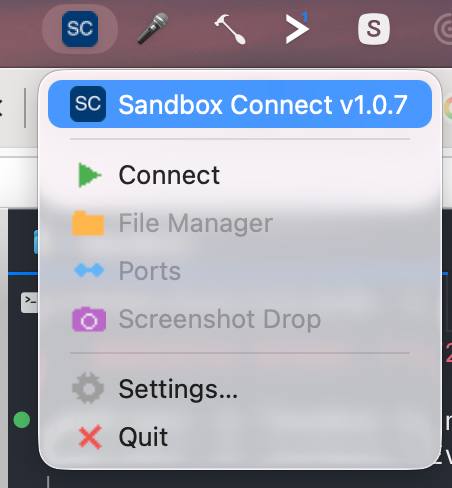 Three items are greyed out — they only activate after a successful Connect.
If you can’t see the icon
It’s hidden behind your notch. Busy menu bars overflow into the notch silently:
 Eight icons on a 13-inch MacBook. The SC icon was completely invisible.
Quit one or two menu-bar apps (Slack, your terminal), or install Ice / Bartender.
4. Enrol your laptop
Click SC → Connect. The first time, Sandbox Connect opens its enrollment window and your browser at the same moment. There is nothing to type:
- If you are not signed in to the portal yet, sign in with your NBG account.
- The browser then shows “Η συσκευή συνδέθηκε — μπορείτε να κλείσετε αυτή την καρτέλα” (“This device is connected”), and Sandbox Connect switches to Ready.
The device appears on the portal as <computer name> (<OS>), e.g. HUAWEI-MATEBOOK (Windows):
 Once enrolled, status goes ACTIVE. Cert is good for 24h and auto-renews every 12h.
Browser tab closed by accident? Click Άνοιγμα ξανά in the Sandbox Connect window. If 15 minutes pass, click Δοκιμή ξανά.
Why is this safe without a confirmation code? Your laptop generated a private key and a one-time secret. The portal hands the certificate only to the program on this laptop that holds that secret, after you signed in. A link forwarded to someone else cannot enrol their machine under your account.
5. Connect to your VM
Click SC → Connect again. The transparent connect sequence runs:
 Seven steps. First connect provisions your VM (~1-2 min). Subsequent connects skip provisioning (~10s).
When it finishes, Apple Terminal opens with an SSH session to your VM — even if you normally use a different terminal. Sandbox Connect writes a .command file and Terminal opens it.
If you see “Operation timed out”
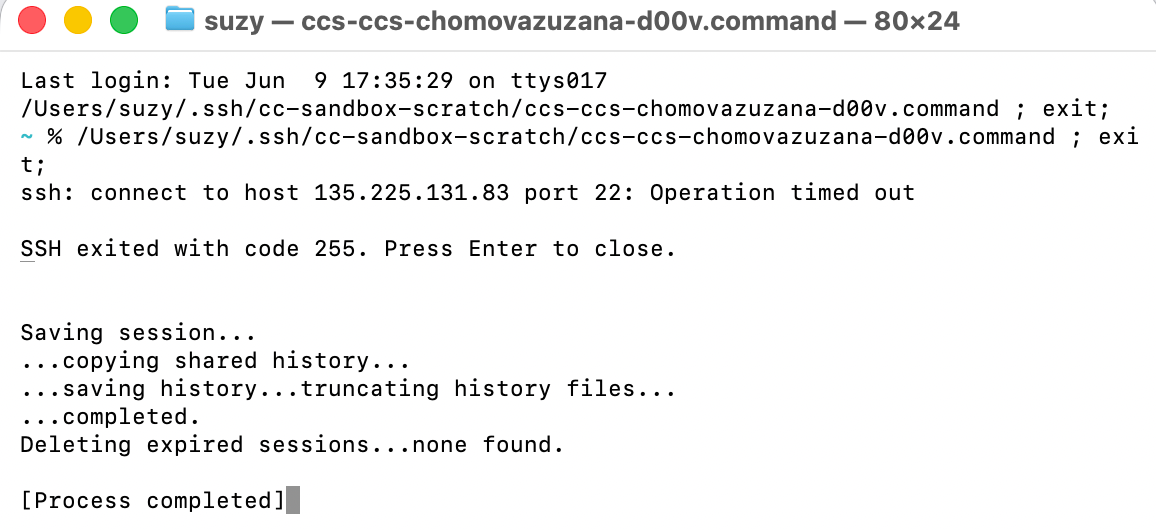 The portal worked. The VM is unreachable. You’re not on NBG VPN.
6. First claude on the VM
Once you have a real shell, type claude. The wrapper asks for your GCP project number — find it at https://console.cloud.google.com/: sign in, pick your project, copy the 12-digit Project number.
Paste it in. The wrapper prints a Google sign-in URL. Open in browser, sign in, click Allow, copy the authorization code back into the terminal. Claude Code starts. On subsequent logins, just claude — no prompts.
No GCP project? Request one through NBG GCP onboarding (needs Vertex AI API enabled + billing).
7. Smoke test
Inside claude:
> what's in this folder?— confirms file access.> create hello.py that prints hi— confirms code-writing.> what version of Node is on this VM?— confirms shell execution.
If all three work, you’re done.
Recap
Net time for a friction-free first install: ~15 minutes. Add 5-10 the first time for Gatekeeper, the hidden icon, or VPN.